Exercise 5
Compression programs
You can find help and tips included to these exercises from address
http://appro.mit.jyu.fi/english/prope.html.
- Create a directory called temp into U:-disk.
-
Use browser and go to address
ftp://garbo.uwasa.fi/pc/virus/fp-308c.zip. Save fp-308c.zip found from there
into U:\temp\ -directory. fp-308c.zip is free anti-virus-program which
can be used on DOS-space.
- Open the compression program by selecting Start | Programs | PowerArchiver | PowerArchiver 2000.
- Start compression of files by creating a new packet. New packet can be made by selecting
File | New Archive. Define
U:\temp\ as a location of the packet and name it as ftp.zip. Then select Save.
- After that select files which can be inserted into packet. Now the files
to be added can be found from U:\temp\ -directory. You can add several
packets simultaneously by using mouse and CTRL-button. Adding active
packets can be done with Add-button.
- Insert a whole directory into the packet. You can add files and directories
into the existing packet by selecting Actions | Add. Insert the
whole contents of U:\prope\-directory into the packet. If there are
files which you don´t want to add into the packet you can edit the contents of the
packet by selections which are found from the Actions-menu. Deleting
the files can be done by using those selections.
- Create a new directory called packet into U:-
directory. Unpack the packet created by you into packet-
directory. Unpacking the packet can be done by selecting
Actions | Extract. Remember to select the packet-directory
as a destination folder . Select All Files
from the extract-window.
- You can get to know of packet-directory at the end. If you
want to copy WS-FTP program for yourself it can be done by copying the packet
made earlier by you into floppy disk.
Moving and copying files between the computers
You must copy or move files from computer to another computer very often.
And it isn´t always possible to use floppy disk or it isn´t even very handy.
The easiest way to move files is to use network link. There are many
different transfer programs and -protocols which can be used. The safest and
most recommended programs are SSH Secure File Transfer and
SCP which use both SSH-protocol. If you can´t use these
programs you can use old and insecure FTP-protocol in a
emergency situation.
SSH Secure File Transfer Client
Secure File Transfer of SSH is a windows-program which can be used
to moving files safely between computers which support SSH2-protocol.
- Start SSH Secure File Transfer by selecting
Start | Programs | Secure Shell SSH | Secure File Transfer Client.
- Press enter and program asks where connection should be taken. Take the
connection into some unix-computer of adp-centrum in which you have user
identification (silmu, itu, verso, kanto tai tukki).
- First copy some file into unix-computer.
- Select the target directory where you want copy the file from list
found in left. You can create a new directory by selecting
Operation|New Folder.
- Select Operation|Upload
- Select from opened window some file from U:-disk which you can copy into
unix-computer as a test.
- The copying starts when you select Upload.
- Next we copy file from unix-computer.
- From list you should find some file or even whole directory from your home-directory.
- Press right mouse-button above the selected file and choose
Download from opened menu.
- There will open a window on screen and you can choose where to copy the file.
Copy the file into U:\prope-directory.
- After you stop copying close Secure File Transfer -program.
- You can get the Secure File Transfer -program with in
SSH2-packet for yourself.
SCP
SCP is program equivalent to Secure File Transfer Client. It works in
command line and it is used for copying files safely between computers.
- Start Command Prompt
- Move into that directory from where you copied the file into unix-computer
with Secure File Transfer.
- Copy the same file as in previous exercise but use now SCP:
scp file user_identification@device:directory
Example like this:
scp file.txt tjlahton@silmu.st.jyu.fi:temp/
The previous line will copy tiedosto.txt from default directory
into temp-directory under the user´s (tjlahton) home directory.
Scp asks needed passwords.
- Next copy file from unix-computer
scp user_identification@device:directory/file file
Example like this:
scp tjlahton@silmu.st.jyu.fi:temp/file.txt file.txt
The previous line will copy tiedosto.txt from
temp-directory in user´s home directory into default directory of
computer used by you and name it as tiedosto.txt.
- You can get the SCP with in
SSH2-packet or
taking the Putty SCP
for yourself.
FTP
FTP is very old moving/copying protocol and program for files. FTP doesn´t
include any kind of encryption. So it is very unsafe to use and it is
recommend to use only in emergency situations. All computers don´t include SSH
encryption so then you must use FTP.
In following exercises you move files between server computer and local computer.
- Find file which you want to move into your home directory by using FTP-program
from u:\prope-directory. WS-FTP program can be started by selecting
Start | Programs | WS_FTP | WS_FTP95LE. The program asks some
things included to connecting after start.
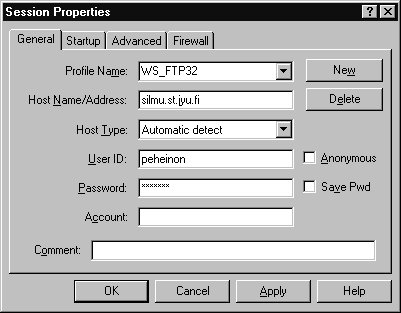
- Write the name of server computer into field Host Name/Address
(example kanto.cc.jyu.fi or silmu.st.jyu.fi).
- Write your user name (example: peheinon) into field User ID.
- Take off the cross from field Anonymous.
Now your password won´t strike through for all people.
- Write your password into field Password.
- When all needed fields are filled accept the window with OK-button.
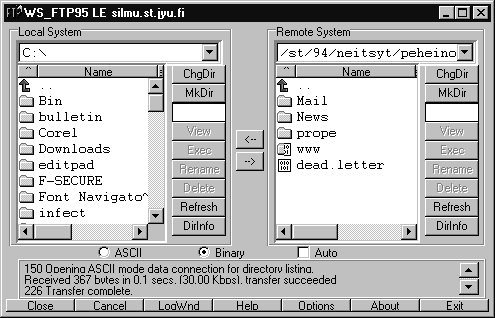
- When connection is succeeded you can see the directory structure of local
computer in left window and the contents of your home directory inside
the server computer in right window. Find the file which you want to move under
your home directory from left window. After that create directory called
prope by using buttons from right-hand side next to the right window.
Move into directory which you just created in right window and copy file from
local device into directory created by you by using arrow-buttons between the
windows.
- Use SSH-program and go into your home directory. Then check if the
directory made by you exists and check also the contents. Check the user-rights of
directories and files and try to remember what different authorizations meant.
Will others see your directory or its contents?
- Delete moved file by using WS-FTP and delete also prope-
directory from server computer at the end.
Course enquiry
There is an enquiry in address: kurssikysely.
Unfortunately it has only been created in Finnish. But anyway, thank you :)
Viruses (Home exercise)
Following exercises unfortunately can´t be done in Agora computer classes
so you have to do exercises in home.
There is used F-secure Anti-Virus virus-scan program in
following exercises for deleting viruses from floppy disks and hard disk.
You can get a test version about F-Secure Anti-Virus from address
<URL:
https://www.europe.f-secure.com/download-purchase/download-forms/anti-virus.html>.
for yourself.
- Start Anti-Virus-program by selecting
Start/Programs/F-Secure Anti-Virus/ F-Secure Anti-Virus for NT.
- There will open a program window in the front of you where you can make all
virus-scan operations that you want. You can add timed functions into program
which the program will do automatically when conditions are filled. You can
use dates, times and lack of use computer as conditions. Get to know of
parts of window and structure of program menus quickly.
- Scan all floppy disks which you have and also hard disk
D:\OMAT\-directory. You can find viruses with program by
editing functions on left edge of window to appropriate form. Double-click
point tutki A: and from opened window you can give disk directory
which is meant to scan by the program. You can scan the whole disk!
Browse through all inter leafs and make sure that there is selected
puhdista in point Toiminta. After
accepting settings and when window is closed you can check some directory or
whole disk by selecting Suorita tehtävät 'Tutki A:'-button from
task-bar. Directory from hard disk can be selected for scanning by editing
function Tutki kansio and choosing correct directory.
After that directory can be scanned by using task-bar button
Suorita tehtävät 'Tutki kansio'. It may take some
time to scan disk and its directories. Virus-scan program checks directories
carefully and then informs scanning results. If there are no viruses
found from disk or its directories the program announces text:
Ei viruksia tai epäilyttäviä tiedostoja/käynnistyslohkoja.
- It isn´t always so easy to get rid of viruses. If virus is in boot section you must
use a little more effective ways to delete it. Boot viruses exist
quite seldom nowadays!