Exercise 7
IRC, network tools, SSI and some advanced CSS
IRC
- Make ssh connection to verso.st.jyu.fi.
- Start ircII by writing:
11:52am@verso:~% irc
- After starting ircII connect to the irc server of the University by writing:
/server irc.jyu.fi
- Choose a nickname and take it into use by using the command /nick:
/nick Student
If you are trying to use a nickname that is already in use you have to make up a new one.
- Join the channel of the course (#appro) by writing:
/join #appro
- It may be quiet on the channel if no-one is writing anything at the moment. See who is on the channel by writing:
/who #appro
- All lines that you start by writing the character / are commands to the ircII program. All the other
lines go to the channel for everyone to read. You can read more about the ircII commands at the
IRC handbook of Freenet or at the ircII help
after writing /help.
- Write something to the channel. Write "hi" if you can't think of anything else :)
Hi everyone. This is my first time at irc :)
- Try creating a so called action by writing for example:
/me is trying irc for the first time
- Ask if you can pratice private messages with someone on the channel. If there are people on the channel
and someone is willing to help try the /msg command:
/msg <nick> Only you can see this message
Replace <nick> with the nickname of the person you are sending the message to.
For example tjlahton has sent a message to hazor who has answered tjlahton:
-> *hazor* Only you can see this message
*Hazor* Yes indeed :)
[1] 12:11 tjlahton (+i) on #appro (+nt) * type /help for help
- You can leave IRC by writing /quit. But don't quit irc just yet but
stay on the channel until you have finished the exercises. If you have any problems with the exercises you can
ask for help on the channel or help the others.
Network tools
Start Command Prompt (Start|Programs|Accessories|Command Prompt and try the following tools.
Traceroute
Use the command tracert to see which route the packages between the computer you use and
www.w3.org take.
tracert www.w3.org
Also take a look at the route to the following computers:
- www.jyu.fi
- appro.mit.jyu.fi
- www.funet.fi
- www.aussie.net.au
Ping
Use Ping to check how fast the connection to the computers above is.
ping www.w3.org
ipconfig
Use the ipconfig program to chek the network settings of your computer:
ipconfig /all
Server Side Includes (SSI)
Use the examples from lecture 9 to learn how to use SSI.
- Copy the following to html-kit:
<?xml version="1.0" encoding="ISO-8859-1"?>
<!DOCTYPE html PUBLIC "-//W3C//DTD XHTML Basic 1.0//EN" "http://www.w3.org/TR/xhtml-basic/xhtml-basic10.dtd">
<html xmlns="http://www.w3.org/1999/xhtml" xml:lang="fi">
<head>
<title>SSI example</title>
</head>
<body>
<h1>SSI example</h1>
<!--#config timefmt="%Y-%m-%eT%TZ"-->
<p><strong><!--#echo var="LAST_MODIFIED"--></strong></p>
<!--#include virtual="linkit.ssi"-->
</body>
</html>
- Save the file as ssi.shtml. Note that the file has to be .shtml!
- Open a new document in html-kit and paste the following to it:
<p>
<a accesskey="A" href="/">Appro</a> |
<a accesskey="K" href="../../">Tietoverkot työvälineenä</a> |
<a accesskey="L" href="../../luennot/">Luennot</a> |
<a accesskey="D" href="../../demot/">Demot</a> |
<a accesskey="H" href="../../harkka/">Harjoitustyö</a> |
<a accesskey="M" href="/doc/">Moniste</a> |
<a accesskey="I" href="../../faq/">FAQ</a> |
<a accesskey="T" href="../../linkit/">Linkit</a> |
<a accesskey="S" href="..././tentit/">Suoritukset</a> |
<a accesskey="E" href="/palaute.html">Palaute</a>
</p>
- Save the file as linkit.ssi (linkit = links).
- Copy both of the files to your www directory. Make sure the documents are readible to all.
- Use the browser to see how ssi.shtml document looks like on the server. If it works as it
is supposed to, the document shows the time you saved it on the server and the links on the document
linkit.ssi. The WWW server updates this information on the SSI commands every time the
ssi.shtml file is requested.
CSS and forms
- Use CSS to format the appearance of the form you made last time.
Some hints are available at the
lecture example
(form.htm form.css).
CSS and positioning (advanced)
- Write an example xhtml document and position the contents by using CSS similar to the following site:
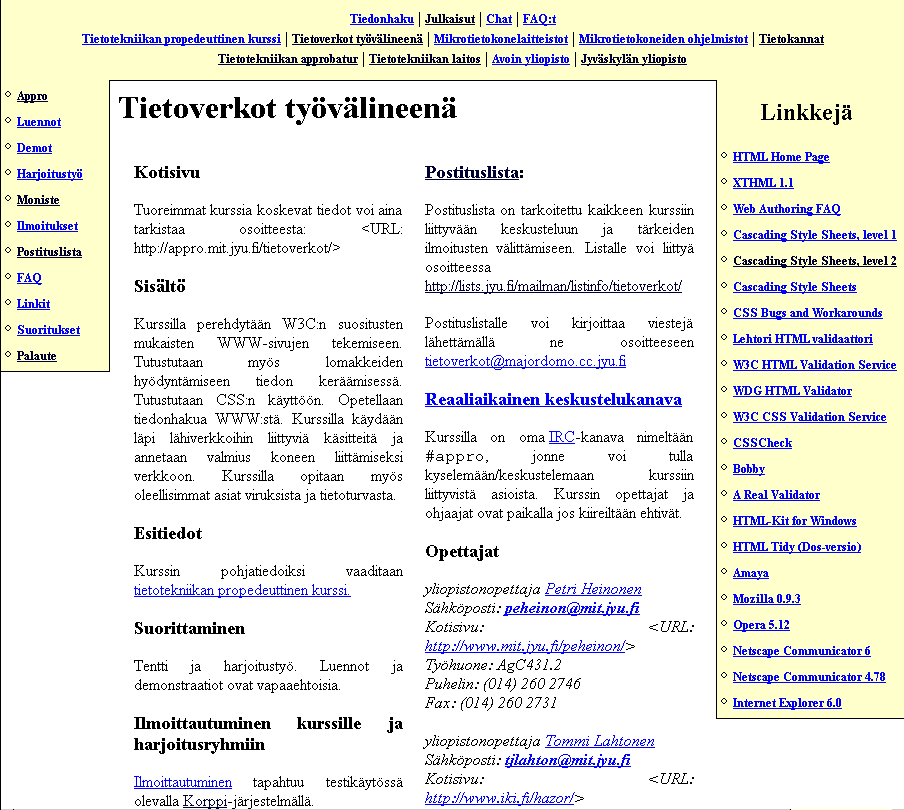
You can also use the contents of the example page as help.
This document, however, does not include the div elements. You have to think yourself how to use them.
Examples at the lecture 9 may be of help. Use Opera or Mozilla to test your page
since they "know better" than IE when it comes to positioning.